Fog in RPG Maker MV: Plugins, Settings and Fixes
To get fog in RPG Maker MV, use a plugin that draws a scrolling image over your map, because MV has no fog layer built in. The most documented route is Victor Engine’s Fog and Overlay plugin, which you drive with a map notetag and a few plugin commands. A weather plugin such as MOG Weather EX is the other proven route. Either way, the result depends on a good fog image, the right layer depth and an event that doesn’t keep resetting the effect. This guide covers all three.
TL;DR
- MV has no native fog, so you need a plugin. VE Fog and Overlay and MOG Weather EX are the two approaches with working step-by-step write-ups.
- A fog is a transparent PNG that scrolls over the map. Its opacity, zoom, hue, blend mode, scroll speed and depth are all set in one notetag line.
- Most flicker and “fog only on the first map” problems come from a parallel event that calls the fog command again and again.
- Make your fog image seamless by mirroring it before you save it, or you will see a visible seam every time it loops.
- Fog looks half-finished without sound. Pair it with a matching ambience track from a browser-based generator.
Table of Contents
- Three ways to get fog in MV
- Setting up VE Fog and Overlay
- Depth: where the fog sits in the scene
- Make the fog image loop without a seam
- Fixing the common fog problems
- MZ fog plugins in MV, and the reverse
- Add the sound that sells the fog
- Our perspective
- Build the whole mood in one place
- FAQ
- Sources
Three ways to get fog in MV
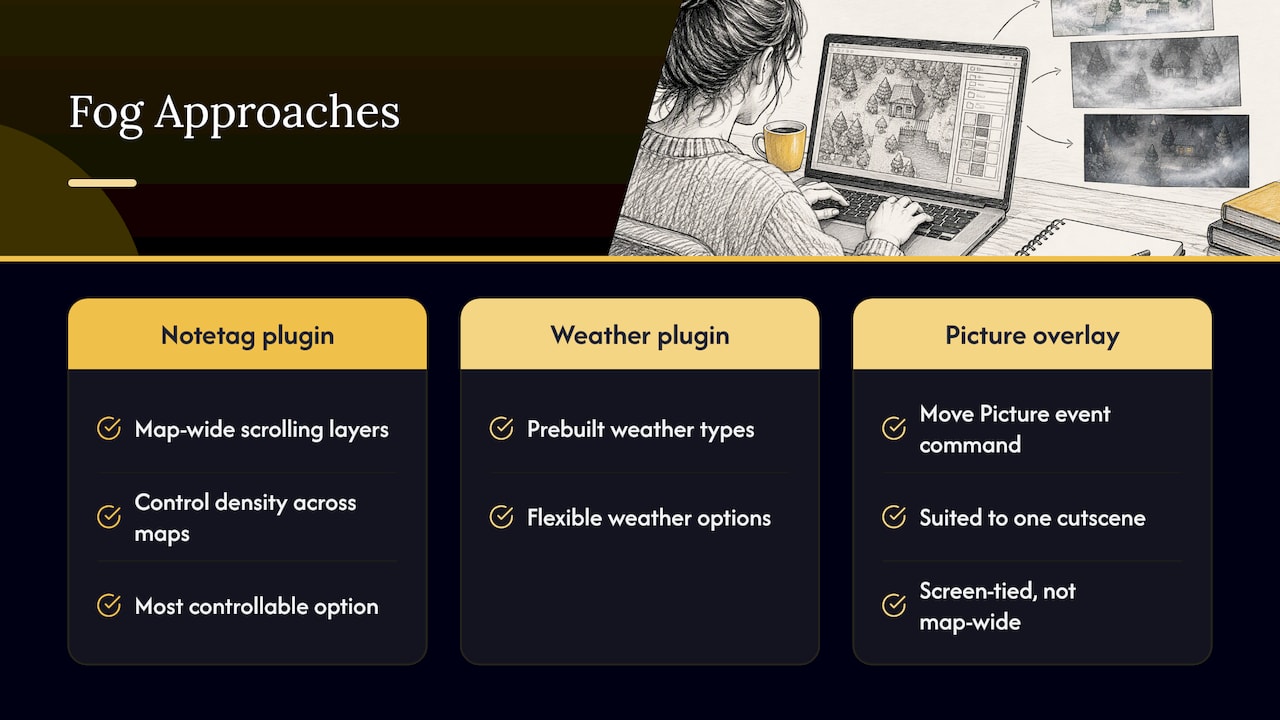
There are really three approaches, and they differ in how much work they ask of you.
A fog plugin with notetags. You tag the map, point to an image and let the plugin handle scrolling and layering. This is the most controllable option and the one most of this article covers.
A weather plugin. Plugins like MOG Weather EX ship with prebuilt weather types. A developer at Arcani Interactive, who documented both this and the Victor Engine route for MV, prefers MOG Weather EX for its flexibility and prebuilt weather options. He also described the Victor system as fun, easy and understandable, with its example notetag settings enough to get started.
A parallax or picture overlay. You can show a picture with an event and move it with the Move Picture command. It works for a single cutscene. It is a poor fit for a fog that must stay glued to the map across a whole area, because pictures are tied to the screen, not the map.
If you want fog on many maps with different densities, pick a plugin. The rest of this guide assumes that.
Setting up VE Fog and Overlay
The plugin’s author, Victor Sant, supported it in a public thread, and the VE Fog and Overlay forum discussion is where most of its quirks are explained. A translated copy of the v1.07 help file lists every parameter. Here is the workflow.
- Make or pick a fog image. Use a PNG with transparency. Render clouds or noise on a transparent background in any image editor, keep it soft, and keep the file size sensible.
- Place it in the project. Put the PNG in the folder the plugin reads fogs from. Check the plugin’s header for the exact folder name in your version.
- Install and order the plugin. Add the plugin in the Plugin Manager. If you use Victor Engine, load its Basic Module above it, as the Victor plugins require.
- Tag the map. Open the map properties and add a fog notetag with your parameters (below).
- Playtest. Walk through the whole map, not just the spawn point, and check the edges.
The parameters that matter
According to the translated v1.07 help, a fog notetag takes these values:
| Parameter | What it does | Range or values |
|---|---|---|
| id | Identifies the fog so you can change it later | Any number |
| name | The image file to use | File name |
| opacity | How see-through the fog is | 0 to 255 |
| zoom | Scales the image | 100% is default |
| hue | Shifts the image color | 0 to 360 |
| blend | How the fog mixes with what is beneath | 0 normal, 1 additive, 2 subtractive |
| move x / move y | Scrolls the fog relative to the map | Positive or negative numbers |
| pan x / pan y | Pans the fog with the camera | Positive or negative numbers |
| depth | Which layer the fog sits on | 0 to 7 |
The same help lists plugin commands for changing fog during play: FogEffect, FogOpacity (which takes a duration in frames), FogMove and FogPan. FogOpacity with a duration is the one that makes fog roll in or thin out gradually, which is far better than an instant on/off.
Start values that work
Start conservative. Opacity somewhere in the lower half of the 0 to 255 range, a gentle horizontal move value and the normal blend mode give you a readable, atmospheric fog. Then change one value at a time. If you change opacity, zoom and blend together, you will not know which change caused the look you dislike.
A worked example: you have a swamp map. Use a soft gray-green fog PNG, set a modest opacity, and add a slow x movement. Duplicate the notetag with a second fog id, a different image, a larger zoom and a slower, opposite movement. Two layers moving at different speeds read as depth, which one layer never does.
Depth: where the fog sits in the scene
Depth is the setting people get wrong most. On maps, the v1.07 help describes depth values 1 to 7 as placing the fog above, in order: animations, flying and upper characters, upper tiles, normal characters, lower characters, lower tilesets and the parallax. Fogs on the same depth are sorted by id.
What that means in practice:
- Fog over everything, including the player: use a high-layer depth. Good for dense mist where visibility should drop.
- Fog behind characters but over the ground: use a lower depth. The player stays crisp while the ground haze moves. This is the look for a low-lying river mist.
- Fog over the ground but under tree canopies: place it above lower tilesets and below upper tiles, so treetops stay sharp above the haze.
In battle the layers are different: depths 0 to 4 sit above battlers, 5 above battle background 2, 6 above background 1 and 7 above the blurred map background. If your fog looks wrong in combat, check the depth first.
Fixed or unfixed fog
Victor Sant explains in the forum thread that a fog with the “!” filename prefix is fixed: it is locked to the map and moves with it. An unfixed fog drifts slightly relative to the map, the way a parallax does. The difference only becomes obvious when you remove the move x and move y values. If your fog seems to slide against the terrain while the player walks and you did not want that, add the prefix.
Make the fog image loop without a seam
A fog that scrolls will repeat its image endlessly. If the left edge does not match the right edge, you see a vertical line sweep across the screen every few seconds. The Arcani Interactive guide gives a simple fix: build the image from the original plus copies flipped horizontally, vertically and both ways, then join them. The mirrored layout means every edge meets a matching edge, so the color discontinuities disappear.
In practice:
- Start with a square fog image.
- Double the canvas to four times the area.
- Paste a horizontal flip to the right, a vertical flip below, and a flip in both directions diagonally.
- Export as PNG with transparency.
The tradeoff is that mirroring creates a visible symmetry if the cloud shapes are distinctive. Use soft, noisy shapes rather than a recognizable swirl, and the repeat will be invisible in motion.
Keep performance in mind
Layered fog images cost performance. The Japanese patch documentation for Galv’s Layer Graphics plugin notes that many layer images can slow things down, especially on low-end computers and mobile devices. That plugin also needs an /img/layers/ folder to exist in your project before it will load anything. Two well-made fog layers usually beat five muddy ones, so add layers only where the scene needs them.
Fixing the common fog problems
Fog flickers or resets its position
This usually means a parallel-process event is calling FogEffect every frame, which resets the fog and its scroll position each time. Victor Sant’s recommendation in the forum thread is to use Erase Event after the call so it stops repeating. The event still has to run once for the fog to appear, so do not delete it outright.
Fog only appears on some maps
Check these in order:
- Does the map properties notetag exist on every map where you want fog? Notetags are per map.
- Is the image file name spelled exactly the same, including capitalization? Deployed builds on some systems are case sensitive.
- Did a different fog on the same map take the same id?
- Is a parallel event on that map resetting the fog, as above?
One forum user on a Gabe MZ fog thread described fog working on two maps and flashing white around the character on a third. When one map behaves differently, compare its notetag, its events and its blend mode against a map that works. Blend mode is a frequent culprit: additive blending on a bright fog image can blow out to white.
Fog hides the player or UI
Lower the depth so the fog sits beneath characters, or reduce opacity. Fog never covers the message window or menus because those are drawn above the map, so if you see a UI problem it is another plugin.
Fog looks flat
Add a second layer with a different zoom and speed, shift the hue slightly toward the map’s palette, and use a blend mode that suits the time of day. Subtractive blending darkens, which can suit a gloomy cave.
MZ fog plugins in MV, and the reverse
If you find a fog plugin you like and it targets MZ, do not assume it works in MV. Some authors use the annotation @target MZ MV to signal compatibility with both engines, though a plugin annotation guide on RM Planet notes the editor itself ignores it. It is a statement from the author, not a technical guarantee. Player reports in a Steam MZ discussion say some MV plugins run in MZ as they are, case by case, and that MV has more plugins overall and more free ones.
If you work in both engines, our MZ-2-MV Migrator plugin converter and its MV-2-MZ Migrator counterpart are built for moving plugins across.
Add the sound that sells the fog
Fog tells the eye that something is off. Sound tells the ear. A foggy map with the town theme still playing feels like a visual filter. Swap the track for a low, sparse ambience and the same fog suddenly reads as dread or calm.
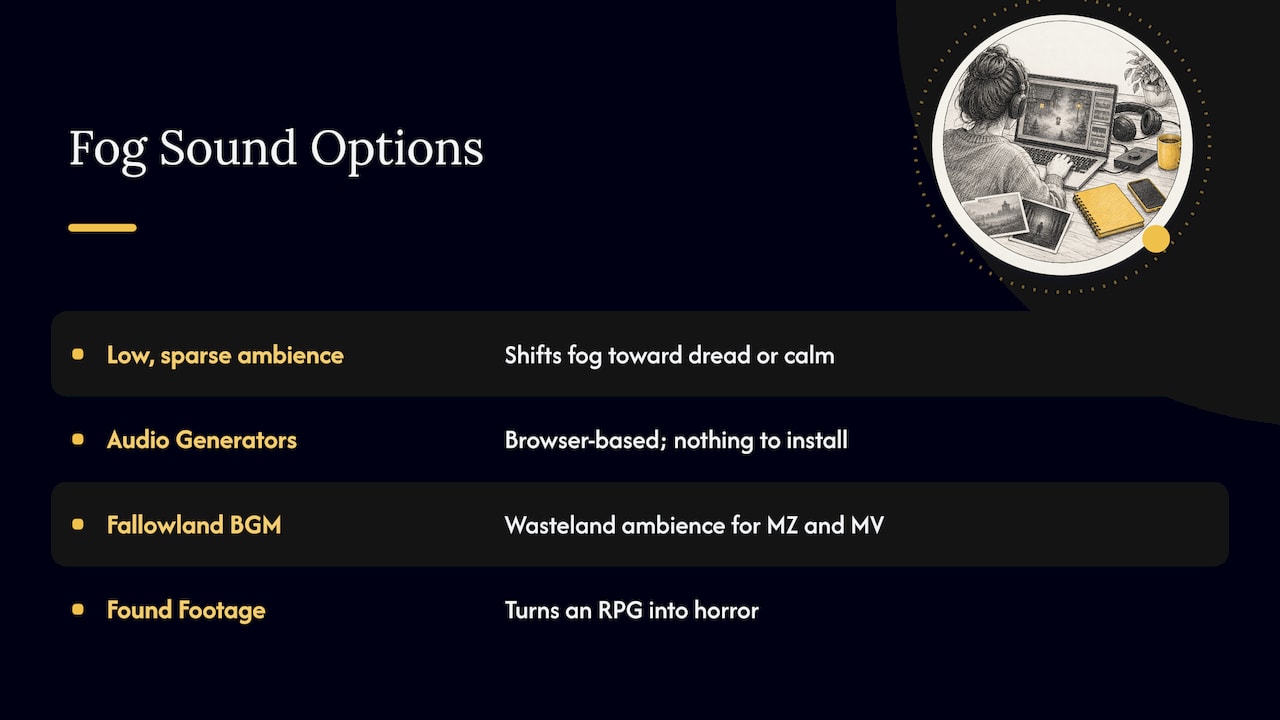
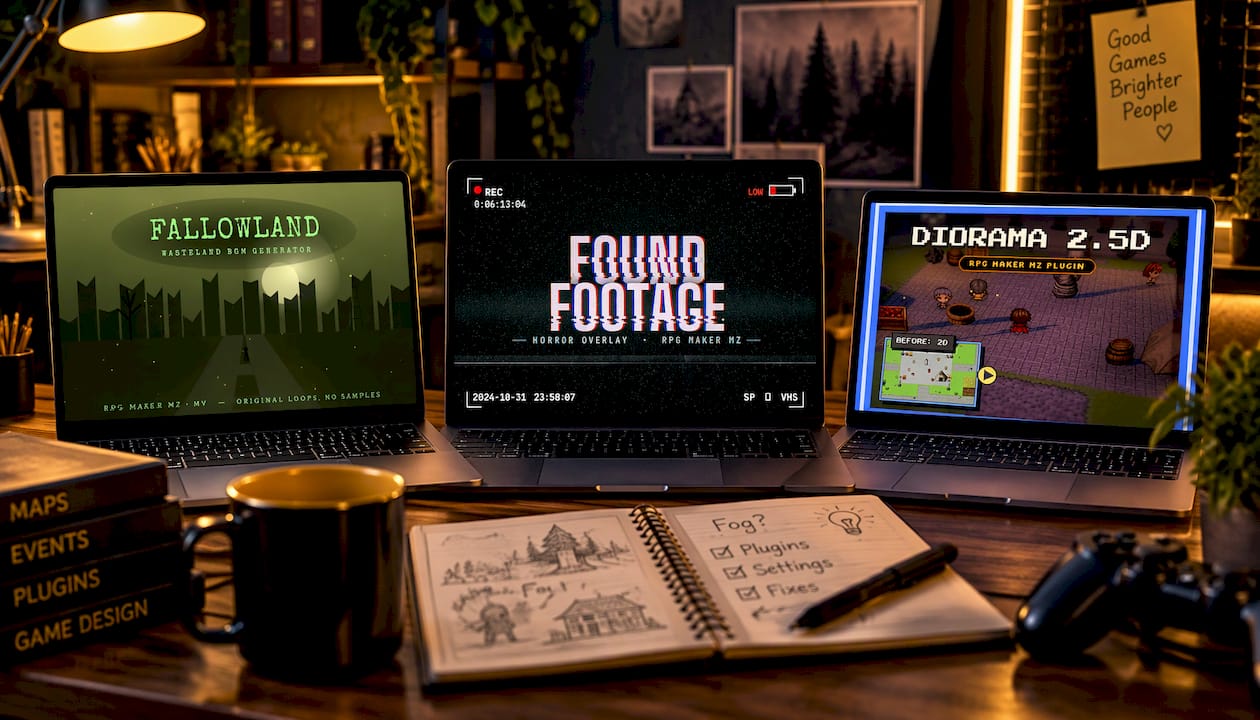
If you want original music instead of the same stock loop everyone else has, the Audio Generators category on our site holds browser-based procedural generators, so there is nothing to install. For a bleak, wasteland-style bed under heavy mist, the Fallowland BGM generator for MZ and MV is a natural fit. For horror projects where fog is the main mood tool, the Found Footage horror plugin is built to turn an RPG into a horror game.
Our perspective
Fog is the cheapest way to make a map feel finished, and the cheapest way to make it feel broken. A soft, seamless image at a sensible depth makes a forest feel alive. A hard seam or a white flash makes players notice the engine instead of the world.
We build tools for developers who want that polish without a big budget. Our generators run in the browser, so you can make an original ambience track or sound effect for your foggy map without installing heavy software. Many of our plugins and tools are free, and our catalog is built around commercial-use licensing so what you make can ship.
Our advice is to treat atmosphere as a set: the fog layer, the lighting, the music and the footsteps should all be answering the same question. Decide the mood first, then pick the pieces.
Brandon
Build the whole mood in one place
Once your fog runs cleanly, the next gains come from sound and from the other plugins that shape a scene. Our Plugins and Tilesets & Art categories cover the engine-side and art-side pieces for MZ and MV, and the Dev Tools category covers workflow helpers.
If you expect to keep building, the Lifetime Supporter Pass covers every RPG Maker plugin, tool, music generator and asset in the catalog, forever. It is the single purchase for a developer who would rather stop shopping per item.
Many of our tools are free, so you can start with those and add paid items as your project grows.
FAQ
Does RPG Maker MV have a built-in fog effect?
No. MV has no fog layer in the editor, so you add fog with a plugin or with picture commands. Plugins such as VE Fog and Overlay and MOG Weather EX are the documented routes, and plugins give you opacity, scrolling and layer control that pictures do not.
What kind of image should I use for fog?
Use a PNG with a transparent background and soft, low-contrast shapes. Build it from mirrored copies of the original so the edges match when it loops. Keep the file reasonably small, because layered fog images can slow low-end computers and mobile devices.
Why does my fog flash or reset?
A parallel-process event is most likely calling the fog command repeatedly and resetting its position. The plugin author’s fix is to use Erase Event so the call stops repeating. Also check the blend mode, since additive blending on a bright image can wash out to white.
Can I use an MZ fog plugin in MV?
Sometimes. Some authors mark plugins as working with both engines, but the editor ignores that tag, so it only tells you what the author intends. Test on a copy of your project first, and use a converter if the plugin was made for the other engine.
How do I make fog fade in gradually?
In VE Fog and Overlay, the FogOpacity plugin command accepts a duration in frames. Set a target opacity and a longer duration, and the fog thickens or thins smoothly instead of popping in.
Sources
- Ways to Put Fog in RPGMAKER MV: Victor Engine, Arcani Interactive
- VE Fog and Overlay, RPG Maker Forum Archive
- VE Fog and Overlay v1.07 help, translated
- Galv’s Layer Graphics v2.0 patch documentation
- A guide to plugin annotations, RM Planet Forums
- MZ or MV discussion, Steam Community
Recommended
Disclaimer: This article is for informational purposes only. The author is not affiliated with the creators of RPG Maker or the plugins discussed. All plugin names, trademarks, and links belong to their respective owners. The author may include links to external projects or repositories. Readers should review each project’s license and documentation before downloading or using any plugin.